You can now ask your AI app about your own notes. Connect ChatGPT, Claude or Gemini to Redruled once, and it can find a note, sum up a notebook, add questions or draw a flowchart for you. Here is how to do it, step by step.
What you need
- A Redruled account. The Free plan is free for ever, and Pro is free for your first 3 months.
- The AI app you already use: ChatGPT, Claude, Gemini, or another app that can add a “connector” or an “MCP server”.
- This address:
https://mcp.redruled.com/mcp
Step 1: Copy the address
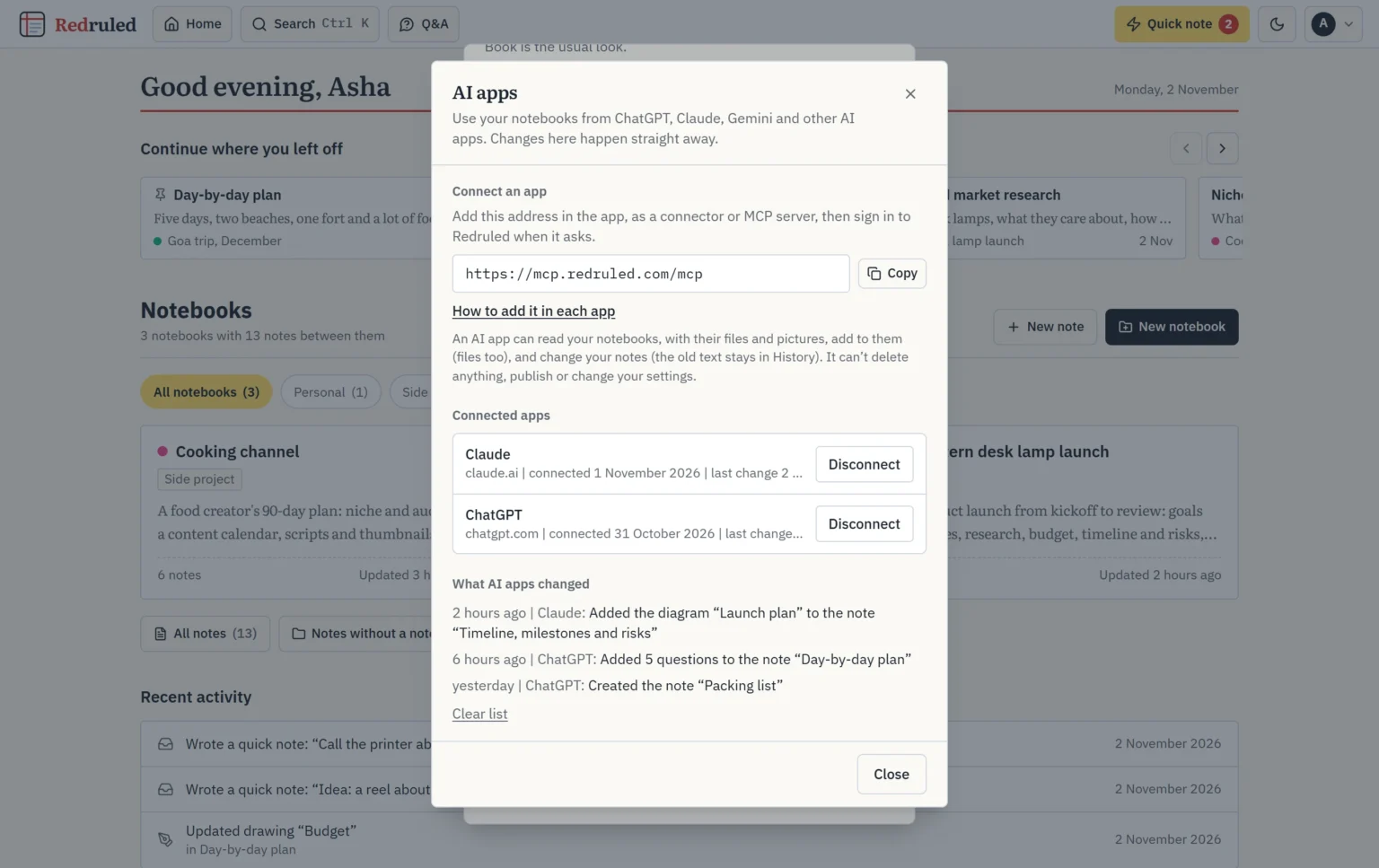
Copy the address above. You’ll also find it inside Redruled: open Settings, then AI apps, and tap Copy.
Step 2: Add it in your AI app
Claude (and Cowork)
Open Settings → Connectors → Add custom connector. Paste the address and save.
ChatGPT
Open Settings → Apps → Advanced settings. Turn on Developer mode, then tap Create app and paste the address.
Gemini
Open Settings → Connected apps → Custom apps → Add a custom app, then paste the address.
Other apps
Antigravity, Claude Code, Gemini CLI and other apps have their own steps. You’ll find them all on the AI apps page.
Apps change their menus from time to time. If a step looks different, look for “connectors”, “custom apps” or “MCP servers” in the app’s settings.
Step 3: Sign in and tap Allow
Your AI app now opens Redruled and asks you to sign in. Redruled then shows you which app is asking, the address it will return to, and what it may and may not do. If it all looks right, tap Allow. That’s it: you’re connected.
If Redruled says it doesn’t know the app, take a second look at the address it shows before you allow it.
Try it
Talk to your AI app the way you normally do. For example:
- “Sum up my Goa trip notebook in five lines.”
- “What is still unticked on my packing checklist?”
- “Add five questions to my note about the launch budget.”
- “Draw a flowchart of our new customer steps in my Work notebook.”
What it can and can’t do
A connected AI app works as you, inside your own notebooks. It can read and search your notes, with their files, pictures and drawings, create notebooks and notes, edit a note’s text, add questions, checklist items, files and quick notes, tick things off, and make drawings and diagrams.
It can’t delete anything, ever. It can’t publish your notebooks, change or rename a file, or change your settings. When it changes a note, the old text stays in the note’s history, and every change it makes is listed in Redruled under Settings, AI apps, “What AI apps changed”.
Changed your mind?
Open Settings, then AI apps, and tap Disconnect next to the app. It stops working at once. You can connect it again whenever you like.
Start free with Redruled and connect your AI app in a few minutes.